
Control Center IOS 16 - Screen Recorder
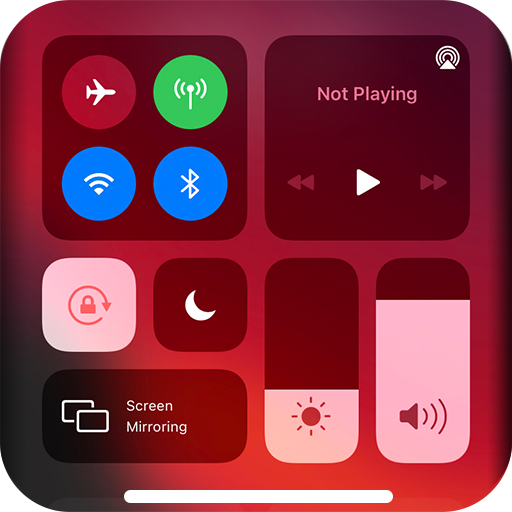
quickly helps you to change settings, screen recorder, screenshot, night mode, lock the screen (Screen off), volume controller, and fast access to the favorite application.
Control Center - quickly change settings:
- Screen recorder be like iPhone
- Screenshot, screen capture
- Wifi
- Bluetooth
- Screen rotation
- Mobile hotspot: easy to make a personal hotspot and share your internet.
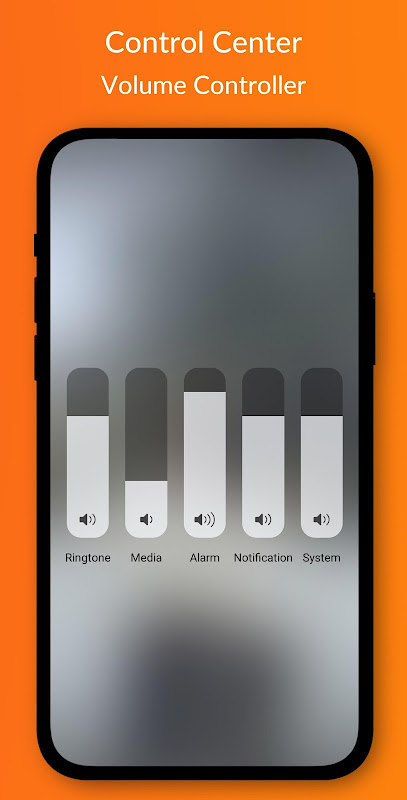
- Volume controller: change volume ringtone, music, alarm, notification, and system sounds.
- Music controller
- Screen brightness
- Flashlight
- Do not disturb
- Silent, vibration, and sound
- Lock the screen (screen off)
- Night mode (night light) and take care of your eyes
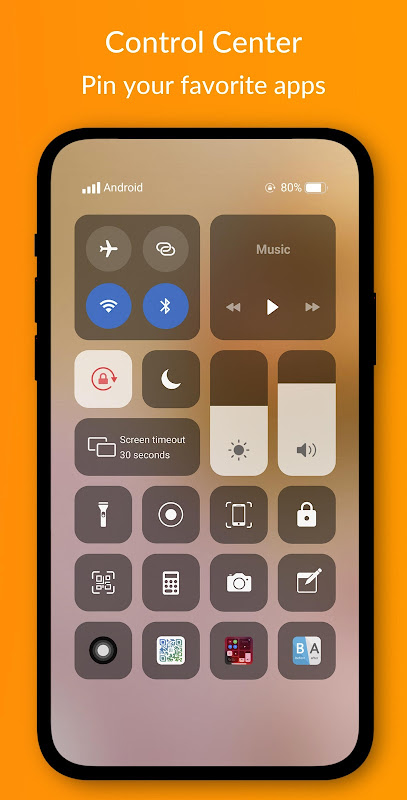
- Pin favorite application in Control Center
How to open Control Center:
- If "Top-right Edge" is enabled, swipe down from the top-right edge to open Control Center.
- If "Top-right Edge" is not enabled, swipe up from the bottom of the screen to open Control Center.
- Touch or swipe down, swipe up to close.
Control Center has no custom limits: change color, background, button size, home bar size, video recorder.
How to recording screen:
1. Click the icon screen recorder on the bottom of the screen of the Control Center IOS 14.
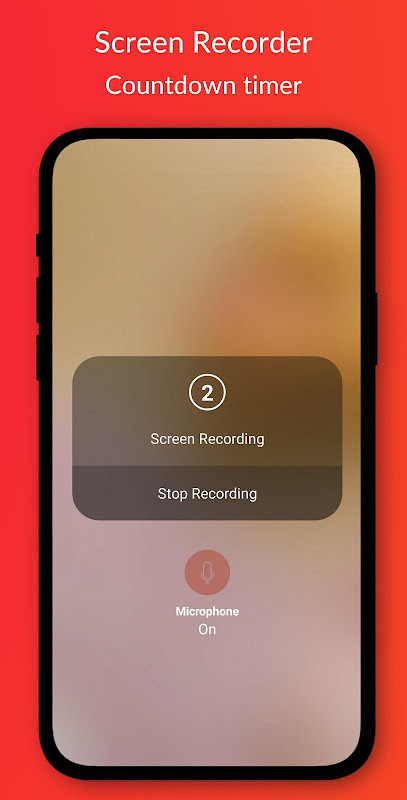
2. Countdown timer display with 3, 2, 1. On that screen, choose to turn on/off the sound.
3. Enjoy your screen recorder.
Change screen recorder settings: Bitrate and Frame rate.
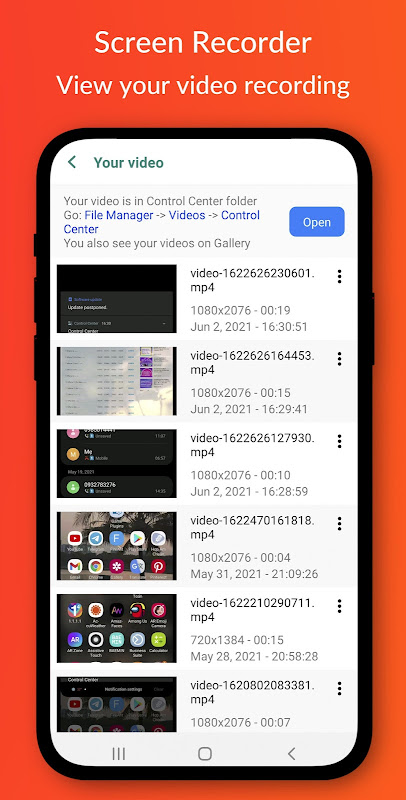
The video is located in the "Control Center" folder.
Control Center IOS 16 - screen recorder, du recorder, mobizen.
Thanks for using my app!
Control Center Screen Recorder is a versatile and user-friendly screen recording software designed to capture your screen activity effortlessly. With its intuitive interface and advanced features, it empowers users to create high-quality screen recordings for various purposes, including presentations, tutorials, demos, and personal documentation.
Seamless Screen Recording:
Control Center Screen Recorder offers a seamless screen recording experience, allowing you to capture your entire screen, a specific window, or a selected area with just a few clicks. The customizable recording options let you adjust the resolution, frame rate, and audio source to suit your specific requirements.
Advanced Editing Suite:
Once your screen recording is complete, Control Center Screen Recorder provides a robust editing suite to enhance and refine your videos. Trim unwanted footage, add transitions, insert text and annotations, and even merge multiple recordings seamlessly. Its user-friendly timeline makes editing a breeze, enabling you to create polished and professional-looking videos.
Versatile Export Options:
Control Center Screen Recorder offers a wide range of export options to cater to different needs. Save your recordings in various video formats, including MP4, MOV, AVI, and WMV, to ensure compatibility with a variety of devices and platforms. You can also optimize your videos for specific uses, such as social media, presentations, or e-learning.
Additional Features:
Beyond its core screen recording and editing capabilities, Control Center Screen Recorder offers a host of additional features to enhance your recording experience. Create scheduled recordings to capture events at specific times, set up hotkeys for quick and easy recording initiation, and utilize the built-in webcam recorder to add a personal touch to your videos.
Intuitive Interface:
Control Center Screen Recorder is designed with an intuitive and user-friendly interface that makes it accessible to users of all skill levels. The well-organized layout and clear instructions guide you through the recording and editing process effortlessly. Whether you're a beginner or an experienced video creator, you'll find Control Center Screen Recorder easy to use.
Conclusion:
Control Center Screen Recorder is an indispensable tool for anyone looking to capture and share their screen activity. Its comprehensive feature set, seamless recording capabilities, advanced editing suite, and versatile export options make it the ideal choice for creating high-quality screen recordings for a variety of purposes. Whether you're a teacher, student, professional, or content creator, Control Center Screen Recorder empowers you to document your work, share your ideas, and engage your audience effectively.
Control Center IOS 16 - Screen Recorder
quickly helps you to change settings, screen recorder, screenshot, night mode, lock the screen (Screen off), volume controller, and fast access to the favorite application.
Control Center - quickly change settings:
- Screen recorder be like iPhone
- Screenshot, screen capture
- Wifi
- Bluetooth
- Screen rotation
- Mobile hotspot: easy to make a personal hotspot and share your internet.
- Volume controller: change volume ringtone, music, alarm, notification, and system sounds.
- Music controller
- Screen brightness
- Flashlight
- Do not disturb
- Silent, vibration, and sound
- Lock the screen (screen off)
- Night mode (night light) and take care of your eyes
- Pin favorite application in Control Center
How to open Control Center:
- If "Top-right Edge" is enabled, swipe down from the top-right edge to open Control Center.
- If "Top-right Edge" is not enabled, swipe up from the bottom of the screen to open Control Center.
- Touch or swipe down, swipe up to close.
Control Center has no custom limits: change color, background, button size, home bar size, video recorder.
How to recording screen:
1. Click the icon screen recorder on the bottom of the screen of the Control Center IOS 14.
2. Countdown timer display with 3, 2, 1. On that screen, choose to turn on/off the sound.
3. Enjoy your screen recorder.
Change screen recorder settings: Bitrate and Frame rate.
The video is located in the "Control Center" folder.
Control Center IOS 16 - screen recorder, du recorder, mobizen.
Thanks for using my app!
Control Center Screen Recorder is a versatile and user-friendly screen recording software designed to capture your screen activity effortlessly. With its intuitive interface and advanced features, it empowers users to create high-quality screen recordings for various purposes, including presentations, tutorials, demos, and personal documentation.
Seamless Screen Recording:
Control Center Screen Recorder offers a seamless screen recording experience, allowing you to capture your entire screen, a specific window, or a selected area with just a few clicks. The customizable recording options let you adjust the resolution, frame rate, and audio source to suit your specific requirements.
Advanced Editing Suite:
Once your screen recording is complete, Control Center Screen Recorder provides a robust editing suite to enhance and refine your videos. Trim unwanted footage, add transitions, insert text and annotations, and even merge multiple recordings seamlessly. Its user-friendly timeline makes editing a breeze, enabling you to create polished and professional-looking videos.
Versatile Export Options:
Control Center Screen Recorder offers a wide range of export options to cater to different needs. Save your recordings in various video formats, including MP4, MOV, AVI, and WMV, to ensure compatibility with a variety of devices and platforms. You can also optimize your videos for specific uses, such as social media, presentations, or e-learning.
Additional Features:
Beyond its core screen recording and editing capabilities, Control Center Screen Recorder offers a host of additional features to enhance your recording experience. Create scheduled recordings to capture events at specific times, set up hotkeys for quick and easy recording initiation, and utilize the built-in webcam recorder to add a personal touch to your videos.
Intuitive Interface:
Control Center Screen Recorder is designed with an intuitive and user-friendly interface that makes it accessible to users of all skill levels. The well-organized layout and clear instructions guide you through the recording and editing process effortlessly. Whether you're a beginner or an experienced video creator, you'll find Control Center Screen Recorder easy to use.
Conclusion:
Control Center Screen Recorder is an indispensable tool for anyone looking to capture and share their screen activity. Its comprehensive feature set, seamless recording capabilities, advanced editing suite, and versatile export options make it the ideal choice for creating high-quality screen recordings for a variety of purposes. Whether you're a teacher, student, professional, or content creator, Control Center Screen Recorder empowers you to document your work, share your ideas, and engage your audience effectively.