

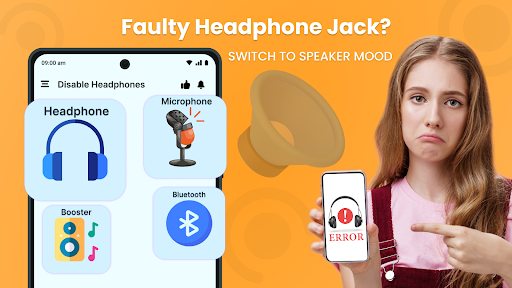
Are your Earphones always plugged In even without being connected to your Phone❓❓ Disable headphones (Enable Speaker) and a volume booster can fix those problems for android users. Disable headphone with Bass Booster has a user friendly interface. If you are in a situation where the pre-installed headphone feature is problematic for you then you can use this disable headphone & volume booster. Sometimes your device shows a sign of headphone on the top of the screen in the title bar which is problematic for you.
Don't worry about disabling headphones, fix your headphone issues with this app. So, first of all, let's summarize what the disabled headphone and Enable Speaker Mode app brought for you. Disable microphone headphone helps its users to set speaker issues and raise the volume with the Bass booster feature of this enable speaker volume - disable headphone mode.
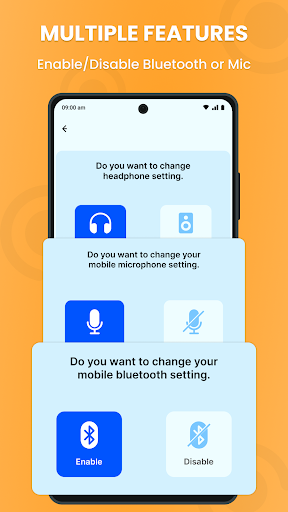
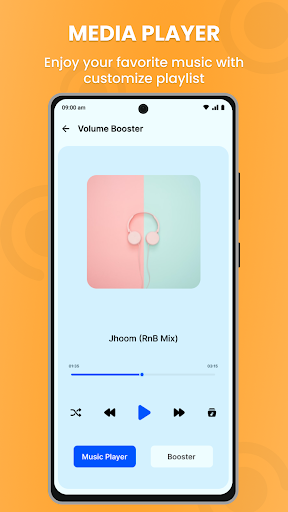
You can enable and disable Bluetooth and speakers in this Bluetooth earphone app which helps you easily connect with your device. Disable microphones are added in this disabled headphone & Volume Booster App which makes it different from other apps. Bass Booster & Enable Speaker Mode is added to this disable headphone enable microphone app that will automatically detect songs from your phone and play as a music player.
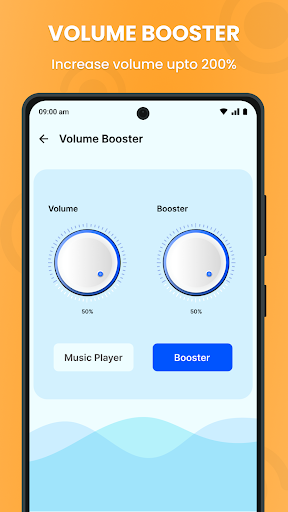
Find the sound controls, and enable or disable them, it will give you access to a volume booster, and you can minimize or maximize the volume according to your needs. Speaker booster & disable headphone jack app will set the speaker as the primary output even when the headphone is connected. Enable speaker volume - disable headphone mode Off or enable loudspeaker app would be very helpful to all users experiencing problems with their headphone jack.
A Headset microphone enable permits you to play sound through the telephone's speaker in any event when your headset, despite everything demonstrating stops. If your phone is stuck in disable headphones mode just solve those issues with just a single Tap. Control the enable speaker and headphone (Bluetooth earphones control) Mode of your device from the app.
💥 Key features of Enable speaker volume - disable headphone mode App:
✨ Enable speaker volume / disable headphone fix earphones.
✨ Enable speaker and headphones.
✨ Disable microphone headphones.
✨ Bass booster with Enable Headphones help to Play music.
✨ Settings (sound controls)
✨ Built-in Music Player in Disable earphones & Sound Booster app.
✨ Effectively turn on/off the headset.
Disable headphones and enabling the loudspeaker will offer you the privilege to control sounds with your telephone essentially. Enable Bluetooth microphone and Disable Bluetooth microphone will help you adjust mobile issues regarding Bluetooth issues. Disable headphones mode off has a volume booster feature that helps you to boost the sound of your Android phone.
💥 Disable & Enable Headphone: 🎧
Disable headphone enable speaker allows its users to disable and enable earphones. Disable headphone fix earphone / enable loudspeaker helps users to solve earphone-related issues and remove the headphone symbol from the notification bar.
💥 Bluetooth Controller: 📱
Disable headphone microphone presents to you the component with which you can control the Bluetooth earphones utilizing this Disable Faulty Headset app. You can empower earphones through your cell phone. The component has alluring and straightforward structures to control Bluetooth earphones without any problem.
💥 Enable / Disable Microphone: 🎙️
Even if you have issues utilizing an earphone mic for sound or video calls. Presently, you can utilize the disabled headphones for turning off the earphone's mic while tuning in through the speakers.
💥 Volume control: 🔊
Utilize on-screen volume to control the speaker and sound degree of the mp3 or sound booster for raising the volume.
Introduction
Headphone-volume boost, a common feature in audio settings, is designed to amplify sound output for headphones, providing users with a louder listening experience. However, in certain scenarios, this boost can introduce unwanted distortions or damage to hearing. This guide provides a comprehensive explanation of how to disable headphone-volume boost for optimal audio quality and hearing health.
Understanding Headphone-Volume Boost
Headphone-volume boost is a software or hardware feature that increases the output volume specifically for headphones. This is achieved by applying an amplification factor to the audio signal, resulting in louder sound levels. While this feature can be beneficial for headphones with low sensitivity, it can also lead to several drawbacks.
Drawbacks of Headphone-Volume Boost
* Audio Distortion: Boosting the volume beyond the headphone's optimal range can introduce audible distortions, such as crackling or clipping. These distortions can degrade the overall listening experience and compromise audio quality.
* Hearing Damage: Excessive volume levels, especially with prolonged use, can damage hearing. Headphone-volume boost increases the risk of hearing loss, particularly if the headphones are used at high volumes for extended periods.
* Unnecessary Amplification: In many cases, headphones already provide sufficient volume levels without the need for additional boosting. Enabling headphone-volume boost can result in unnecessarily high volumes, leading to the aforementioned drawbacks.
Disabling Headphone-Volume Boost
To disable headphone-volume boost and ensure optimal audio quality, follow these steps:
1. Windows:
* Right-click the speaker icon in the taskbar and select "Sounds."
* In the "Playback" tab, select your headphones and click "Properties."
* Navigate to the "Enhancements" tab and uncheck the box for "Headphone Volume Boost."
2. macOS:
* Click the Apple menu and select "System Preferences."
* Click on "Sound" and select your headphones in the "Output" tab.
* Uncheck the box for "Headphone Safety" under the "Output Volume" section.
3. Android:
* Open the Settings app and search for "Sound."
* Select "Headphone Safety" and toggle it off.
4. iOS:
* Go to Settings and tap on "Sounds & Haptics."
* Scroll down and tap on "Headphone Safety."
* Toggle off the switch for "Reduce Loud Sounds."
Alternative Solutions for Volume Enhancement
If you find that your headphones are too quiet even after disabling headphone-volume boost, consider the following alternative solutions:
* Use an external amplifier: A headphone amplifier can boost the signal without introducing distortions, providing increased volume while maintaining audio quality.
* Purchase more sensitive headphones: Headphones with higher sensitivity can produce louder sound levels at lower volumes, eliminating the need for excessive boosting.
* Check audio source: Ensure that the audio source (e.g., music player, video streaming app) is outputting at a sufficient volume level.
Conclusion
Disabling headphone-volume boost is crucial for preserving audio quality and protecting hearing health. By following the steps outlined in this guide, you can ensure an optimal listening experience with clear, distortion-free sound. If additional volume enhancement is required, consider alternative solutions such as external amplifiers or more sensitive headphones. Remember to listen responsibly and avoid prolonged exposure to excessively loud volumes.
Are your Earphones always plugged In even without being connected to your Phone❓❓ Disable headphones (Enable Speaker) and a volume booster can fix those problems for android users. Disable headphone with Bass Booster has a user friendly interface. If you are in a situation where the pre-installed headphone feature is problematic for you then you can use this disable headphone & volume booster. Sometimes your device shows a sign of headphone on the top of the screen in the title bar which is problematic for you.
Don't worry about disabling headphones, fix your headphone issues with this app. So, first of all, let's summarize what the disabled headphone and Enable Speaker Mode app brought for you. Disable microphone headphone helps its users to set speaker issues and raise the volume with the Bass booster feature of this enable speaker volume - disable headphone mode.
You can enable and disable Bluetooth and speakers in this Bluetooth earphone app which helps you easily connect with your device. Disable microphones are added in this disabled headphone & Volume Booster App which makes it different from other apps. Bass Booster & Enable Speaker Mode is added to this disable headphone enable microphone app that will automatically detect songs from your phone and play as a music player.
Find the sound controls, and enable or disable them, it will give you access to a volume booster, and you can minimize or maximize the volume according to your needs. Speaker booster & disable headphone jack app will set the speaker as the primary output even when the headphone is connected. Enable speaker volume - disable headphone mode Off or enable loudspeaker app would be very helpful to all users experiencing problems with their headphone jack.
A Headset microphone enable permits you to play sound through the telephone's speaker in any event when your headset, despite everything demonstrating stops. If your phone is stuck in disable headphones mode just solve those issues with just a single Tap. Control the enable speaker and headphone (Bluetooth earphones control) Mode of your device from the app.
💥 Key features of Enable speaker volume - disable headphone mode App:
✨ Enable speaker volume / disable headphone fix earphones.
✨ Enable speaker and headphones.
✨ Disable microphone headphones.
✨ Bass booster with Enable Headphones help to Play music.
✨ Settings (sound controls)
✨ Built-in Music Player in Disable earphones & Sound Booster app.
✨ Effectively turn on/off the headset.
Disable headphones and enabling the loudspeaker will offer you the privilege to control sounds with your telephone essentially. Enable Bluetooth microphone and Disable Bluetooth microphone will help you adjust mobile issues regarding Bluetooth issues. Disable headphones mode off has a volume booster feature that helps you to boost the sound of your Android phone.
💥 Disable & Enable Headphone: 🎧
Disable headphone enable speaker allows its users to disable and enable earphones. Disable headphone fix earphone / enable loudspeaker helps users to solve earphone-related issues and remove the headphone symbol from the notification bar.
💥 Bluetooth Controller: 📱
Disable headphone microphone presents to you the component with which you can control the Bluetooth earphones utilizing this Disable Faulty Headset app. You can empower earphones through your cell phone. The component has alluring and straightforward structures to control Bluetooth earphones without any problem.
💥 Enable / Disable Microphone: 🎙️
Even if you have issues utilizing an earphone mic for sound or video calls. Presently, you can utilize the disabled headphones for turning off the earphone's mic while tuning in through the speakers.
💥 Volume control: 🔊
Utilize on-screen volume to control the speaker and sound degree of the mp3 or sound booster for raising the volume.
Introduction
Headphone-volume boost, a common feature in audio settings, is designed to amplify sound output for headphones, providing users with a louder listening experience. However, in certain scenarios, this boost can introduce unwanted distortions or damage to hearing. This guide provides a comprehensive explanation of how to disable headphone-volume boost for optimal audio quality and hearing health.
Understanding Headphone-Volume Boost
Headphone-volume boost is a software or hardware feature that increases the output volume specifically for headphones. This is achieved by applying an amplification factor to the audio signal, resulting in louder sound levels. While this feature can be beneficial for headphones with low sensitivity, it can also lead to several drawbacks.
Drawbacks of Headphone-Volume Boost
* Audio Distortion: Boosting the volume beyond the headphone's optimal range can introduce audible distortions, such as crackling or clipping. These distortions can degrade the overall listening experience and compromise audio quality.
* Hearing Damage: Excessive volume levels, especially with prolonged use, can damage hearing. Headphone-volume boost increases the risk of hearing loss, particularly if the headphones are used at high volumes for extended periods.
* Unnecessary Amplification: In many cases, headphones already provide sufficient volume levels without the need for additional boosting. Enabling headphone-volume boost can result in unnecessarily high volumes, leading to the aforementioned drawbacks.
Disabling Headphone-Volume Boost
To disable headphone-volume boost and ensure optimal audio quality, follow these steps:
1. Windows:
* Right-click the speaker icon in the taskbar and select "Sounds."
* In the "Playback" tab, select your headphones and click "Properties."
* Navigate to the "Enhancements" tab and uncheck the box for "Headphone Volume Boost."
2. macOS:
* Click the Apple menu and select "System Preferences."
* Click on "Sound" and select your headphones in the "Output" tab.
* Uncheck the box for "Headphone Safety" under the "Output Volume" section.
3. Android:
* Open the Settings app and search for "Sound."
* Select "Headphone Safety" and toggle it off.
4. iOS:
* Go to Settings and tap on "Sounds & Haptics."
* Scroll down and tap on "Headphone Safety."
* Toggle off the switch for "Reduce Loud Sounds."
Alternative Solutions for Volume Enhancement
If you find that your headphones are too quiet even after disabling headphone-volume boost, consider the following alternative solutions:
* Use an external amplifier: A headphone amplifier can boost the signal without introducing distortions, providing increased volume while maintaining audio quality.
* Purchase more sensitive headphones: Headphones with higher sensitivity can produce louder sound levels at lower volumes, eliminating the need for excessive boosting.
* Check audio source: Ensure that the audio source (e.g., music player, video streaming app) is outputting at a sufficient volume level.
Conclusion
Disabling headphone-volume boost is crucial for preserving audio quality and protecting hearing health. By following the steps outlined in this guide, you can ensure an optimal listening experience with clear, distortion-free sound. If additional volume enhancement is required, consider alternative solutions such as external amplifiers or more sensitive headphones. Remember to listen responsibly and avoid prolonged exposure to excessively loud volumes.