


Use Microsoft Authenticator for easy, secure sign-ins for all your online accounts using multi-factor authentication, passwordless, or password autofill. You also have additional account management options for your Microsoft personal, work or school accounts.
Getting started with multi-factor authentication
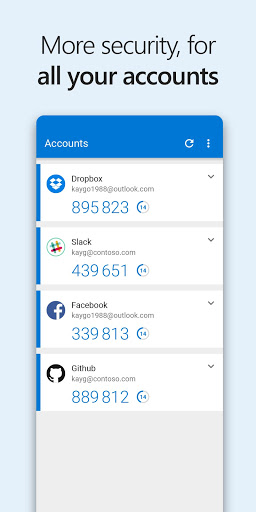
Multi factor authentication (MFA) or two factor authentication (2FA) provides a second layer of security. When logging in with multi-factor authentication, you’ll enter your password, and then you’ll be asked for an additional way to prove it’s really you. Either approve the notification sent to the Microsoft Authenticator, or enter the one-time password (OTP) generated by the app. The one-time passwords (OTP codes) have a 30 second timer counting down. This timer is so you never have to use the same time-based one-time password (TOTP) twice and you don’t have to remember the number. The one-time password (OTP) doesn’t require you to be connected to a network, and it won’t drain your battery. You can add multiple accounts to your app, including non-Microsoft accounts like Facebook, Amazon, Dropbox, Google, LinkedIn, GitHub, and more.
Getting started with passwordless
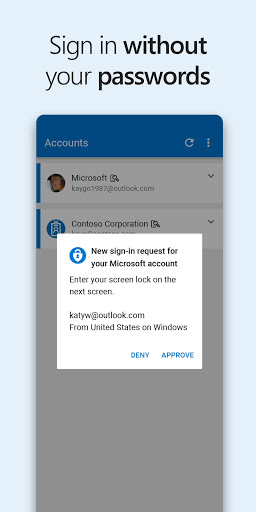
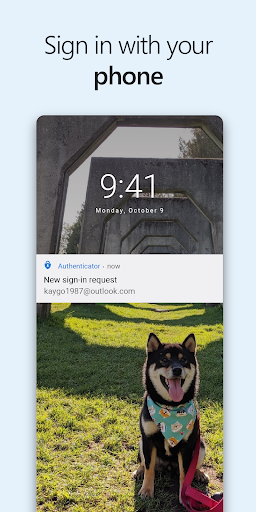
Use your phone, not your password, to log into your Microsoft account. Just enter your username, then approve the notification sent to your phone. Your fingerprint, face ID, or PIN will provide a second layer of security in this two-step verification process. After you’ve signed in with two factor authentication (2FA), you’ll have access to all your Microsoft products and services, such as Outlook, OneDrive, Office, and more.
Getting started with autofill
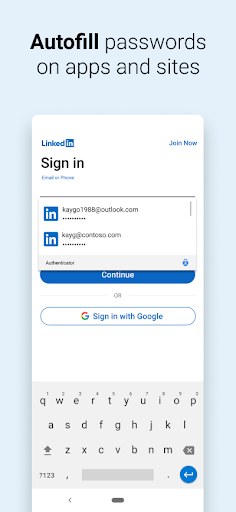
Microsoft Authenticator app can also autofill passwords for you. Sign-in on the Passwords tab inside the Authenticator app with your personal Microsoft account to start syncing passwords, including the passwords saved in Microsoft Edge. Make Microsoft Authenticator the default autofill provider and start autofilling passwords on apps and sites you visit on your mobile. Your passwords are protected with multi-factor authentication in the app. You will need to prove yourself with your fingerprint, face ID, or PIN to access and autofill passwords on your mobile. You can also import passwords from Google Chrome and other password managers.
Microsoft personal, work or school accounts
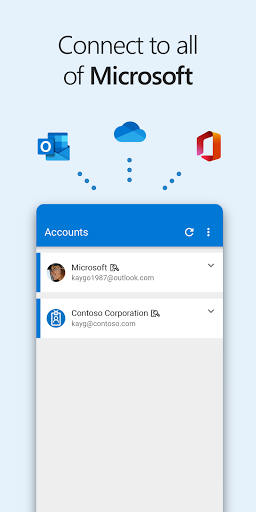
Sometimes your work or school might ask you to install the Microsoft Authenticator when accessing certain files, emails, or apps. You will need to register your device to your organization through the app and add your work or school account. Microsoft Authenticator also supports cert-based authentication by issuing a certificate on your device. This will let your organization know that the sign-in request is coming from a trusted device and help you seamlessly and securely access additional Microsoft apps and services without needing to log into each. Because Microsoft Authenticator supports single sign-on, once you have proven your identity once, you will not need to log in again to other Microsoft apps on your device.
Optional Access permissions:
Microsoft Authenticator includes the following optional access permissions. All these require user consent. If you choose to not grant these optional access permissions, you can still use Microsoft Authenticator for other services that do not require such permission. For more information see https://aka.ms/authappfaq
Accessibility Service: Used to optionally support Autofill on more apps and sites.
Location: Sometimes your organization wants to know your location before allowing you to access certain resources. The app will request this permission only if your organization has a policy requiring location.
Camera: Used to scan QR codes when you add a work, school, or non-Microsoft account.
Read the contents of your storage: This permission is only used when you report a technical problem through the app settings. Some information from your storage is collected to diagnose the issue.
Microsoft Authenticator is a multi-factor authentication (MFA) application developed by Microsoft that provides an additional layer of security to your online accounts. It is designed to protect against unauthorized access, even if your password is compromised.
Multi-Factor Authentication: Stronger Security
MFA is a security measure that requires multiple forms of identification to verify your identity. Microsoft Authenticator supports various MFA methods, including:
* Push Notifications: Approve sign-in requests directly from your device with a simple tap.
* Verification Codes: Receive one-time passcodes via SMS, phone call, or the Microsoft Authenticator app.
* Biometric Authentication: Use your fingerprint or face ID to securely unlock the app and approve sign-ins.
Broad Account Compatibility
Microsoft Authenticator seamlessly integrates with a wide range of accounts, including:
* Microsoft Accounts: Protect your Outlook, Hotmail, Xbox Live, and other Microsoft accounts.
* Social Media Accounts: Enhance the security of your Facebook, Twitter, and Google accounts.
* Financial Accounts: Safeguard your online banking and investment accounts.
* Enterprise Accounts: Enable secure access to your work or school accounts.
User-Friendly Interface and Convenience
Microsoft Authenticator features a user-friendly interface that makes it easy to manage your accounts and security settings. The app offers the following conveniences:
* Centralized Account Management: Manage all your connected accounts from a single location.
* Real-Time Notifications: Receive instant alerts about suspicious sign-in attempts.
* Account Recovery Assistance: Help you recover your accounts if your password is lost or stolen.
* Cross-Platform Support: Available for iOS, Android, and Windows devices.
Enhanced Security Features
In addition to MFA, Microsoft Authenticator provides additional security features to protect your data:
* Time-Based One-Time Passwords (TOTP): Generate secure verification codes even without an internet connection.
* Emergency Access Codes: Set up backup codes in case you lose your device or cannot access the app.
* App Lock: Protect the app with a PIN, password, or biometric authentication.
* Risk Detection: Monitor suspicious activity and alert you to potential threats.
Conclusion
Microsoft Authenticator is an essential tool for enhancing the security of your online accounts. By implementing MFA and providing user-friendly features, it offers a comprehensive and convenient solution for protecting your digital identity and safeguarding your sensitive information.
Use Microsoft Authenticator for easy, secure sign-ins for all your online accounts using multi-factor authentication, passwordless, or password autofill. You also have additional account management options for your Microsoft personal, work or school accounts.
Getting started with multi-factor authentication
Multi factor authentication (MFA) or two factor authentication (2FA) provides a second layer of security. When logging in with multi-factor authentication, you’ll enter your password, and then you’ll be asked for an additional way to prove it’s really you. Either approve the notification sent to the Microsoft Authenticator, or enter the one-time password (OTP) generated by the app. The one-time passwords (OTP codes) have a 30 second timer counting down. This timer is so you never have to use the same time-based one-time password (TOTP) twice and you don’t have to remember the number. The one-time password (OTP) doesn’t require you to be connected to a network, and it won’t drain your battery. You can add multiple accounts to your app, including non-Microsoft accounts like Facebook, Amazon, Dropbox, Google, LinkedIn, GitHub, and more.
Getting started with passwordless
Use your phone, not your password, to log into your Microsoft account. Just enter your username, then approve the notification sent to your phone. Your fingerprint, face ID, or PIN will provide a second layer of security in this two-step verification process. After you’ve signed in with two factor authentication (2FA), you’ll have access to all your Microsoft products and services, such as Outlook, OneDrive, Office, and more.
Getting started with autofill
Microsoft Authenticator app can also autofill passwords for you. Sign-in on the Passwords tab inside the Authenticator app with your personal Microsoft account to start syncing passwords, including the passwords saved in Microsoft Edge. Make Microsoft Authenticator the default autofill provider and start autofilling passwords on apps and sites you visit on your mobile. Your passwords are protected with multi-factor authentication in the app. You will need to prove yourself with your fingerprint, face ID, or PIN to access and autofill passwords on your mobile. You can also import passwords from Google Chrome and other password managers.
Microsoft personal, work or school accounts
Sometimes your work or school might ask you to install the Microsoft Authenticator when accessing certain files, emails, or apps. You will need to register your device to your organization through the app and add your work or school account. Microsoft Authenticator also supports cert-based authentication by issuing a certificate on your device. This will let your organization know that the sign-in request is coming from a trusted device and help you seamlessly and securely access additional Microsoft apps and services without needing to log into each. Because Microsoft Authenticator supports single sign-on, once you have proven your identity once, you will not need to log in again to other Microsoft apps on your device.
Optional Access permissions:
Microsoft Authenticator includes the following optional access permissions. All these require user consent. If you choose to not grant these optional access permissions, you can still use Microsoft Authenticator for other services that do not require such permission. For more information see https://aka.ms/authappfaq
Accessibility Service: Used to optionally support Autofill on more apps and sites.
Location: Sometimes your organization wants to know your location before allowing you to access certain resources. The app will request this permission only if your organization has a policy requiring location.
Camera: Used to scan QR codes when you add a work, school, or non-Microsoft account.
Read the contents of your storage: This permission is only used when you report a technical problem through the app settings. Some information from your storage is collected to diagnose the issue.
Microsoft Authenticator is a multi-factor authentication (MFA) application developed by Microsoft that provides an additional layer of security to your online accounts. It is designed to protect against unauthorized access, even if your password is compromised.
Multi-Factor Authentication: Stronger Security
MFA is a security measure that requires multiple forms of identification to verify your identity. Microsoft Authenticator supports various MFA methods, including:
* Push Notifications: Approve sign-in requests directly from your device with a simple tap.
* Verification Codes: Receive one-time passcodes via SMS, phone call, or the Microsoft Authenticator app.
* Biometric Authentication: Use your fingerprint or face ID to securely unlock the app and approve sign-ins.
Broad Account Compatibility
Microsoft Authenticator seamlessly integrates with a wide range of accounts, including:
* Microsoft Accounts: Protect your Outlook, Hotmail, Xbox Live, and other Microsoft accounts.
* Social Media Accounts: Enhance the security of your Facebook, Twitter, and Google accounts.
* Financial Accounts: Safeguard your online banking and investment accounts.
* Enterprise Accounts: Enable secure access to your work or school accounts.
User-Friendly Interface and Convenience
Microsoft Authenticator features a user-friendly interface that makes it easy to manage your accounts and security settings. The app offers the following conveniences:
* Centralized Account Management: Manage all your connected accounts from a single location.
* Real-Time Notifications: Receive instant alerts about suspicious sign-in attempts.
* Account Recovery Assistance: Help you recover your accounts if your password is lost or stolen.
* Cross-Platform Support: Available for iOS, Android, and Windows devices.
Enhanced Security Features
In addition to MFA, Microsoft Authenticator provides additional security features to protect your data:
* Time-Based One-Time Passwords (TOTP): Generate secure verification codes even without an internet connection.
* Emergency Access Codes: Set up backup codes in case you lose your device or cannot access the app.
* App Lock: Protect the app with a PIN, password, or biometric authentication.
* Risk Detection: Monitor suspicious activity and alert you to potential threats.
Conclusion
Microsoft Authenticator is an essential tool for enhancing the security of your online accounts. By implementing MFA and providing user-friendly features, it offers a comprehensive and convenient solution for protecting your digital identity and safeguarding your sensitive information.